Build an Acrobat clone: start with a useful PDF workbench
“Build a PDF editor” can mean anything from reordering pages to rewriting document layout. A realistic Acrobat-inspired first version should define that boundary clearly. Our brief starts with a desktop workbench for viewing, organizing, annotating and exporting supported PDFs.
By Clone4.me · AI-assisted editorial ·
A practical starting point
The proposed stack is Python/PySide6 with a maintained PDF engine whose license and feature support fit your project. Preserve originals, separate document operations from rendering, and verify exported files in another viewer. OCR and security redaction are excluded from the first scope.
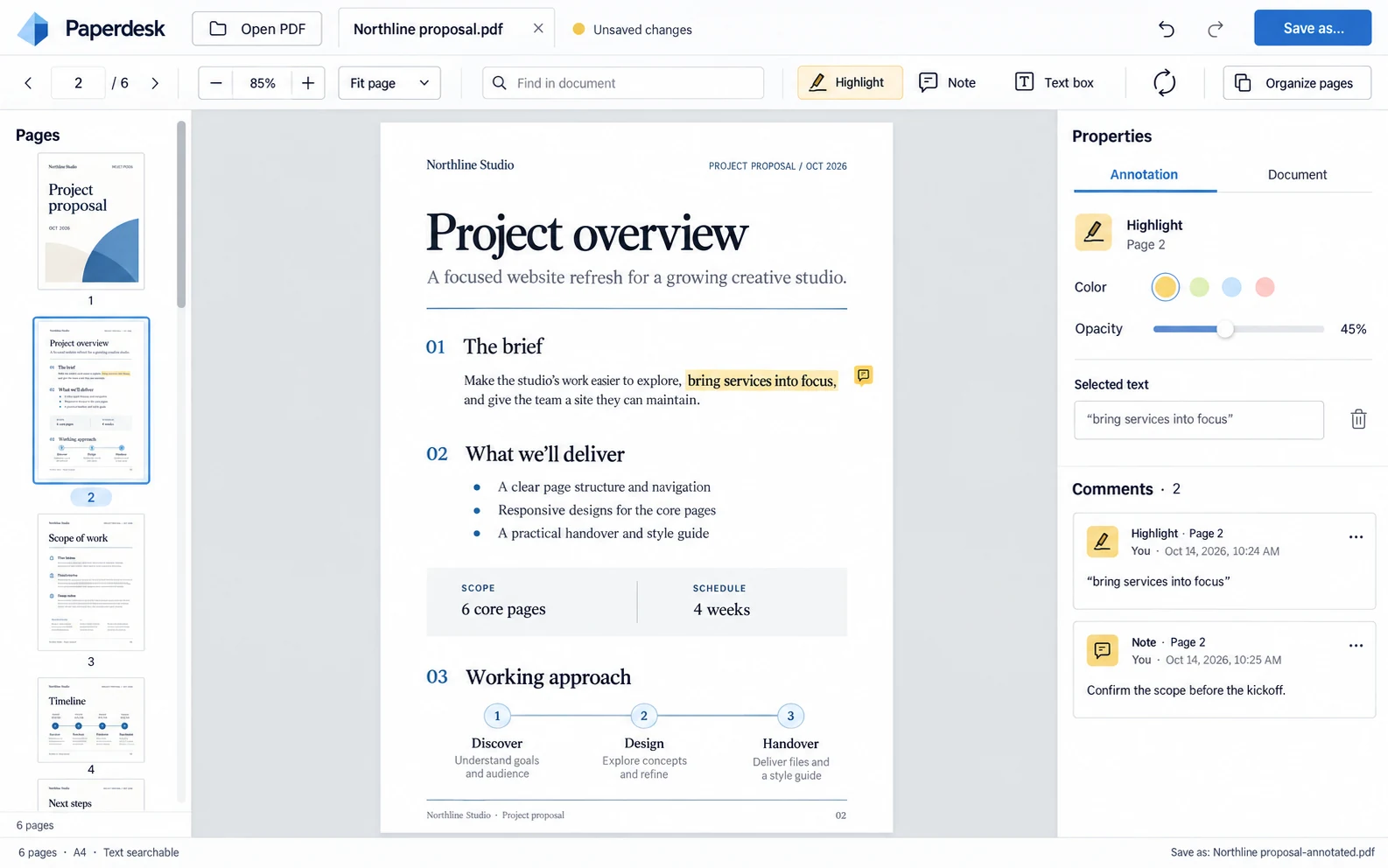
Split PDF editing into specific capabilities
A viewer renders a page. An organizer merges, splits, rotates or reorders pages. An annotation layer adds supported comments or highlights. Editing existing text, running OCR, creating cryptographic signatures and securely removing content are distinct capabilities with different failure modes. Choose the ones your first users actually need.
For a personal paperwork workbench, select two PDF inputs, reorder their pages, rotate one, search existing text and export a new file. Add supported annotations and forms only after the selected engine can save and reopen them reliably. Never let a long toolbar imply operations that the backend does not perform.
Choose an engine by supported behavior
qpdf documents structural transformations such as page copying and merging; it explicitly is not a PDF viewer or general document-creation tool. PDFium has parsing and rendering components. These examples show why selecting a library by its name alone is insufficient. Build a small compatibility fixture before committing to an integration.
List the features you must retain: page geometry, links, annotations, forms or encryption behavior. Read the library’s license and distribution requirements. If a feature cannot be preserved, reject the operation or explain the limitation before export rather than quietly flattening or dropping important document data.
References: qpdf overview and scope · PDFium architecture
Separate the source from the editing session
Keep an immutable source reference plus an ordered list of page references and pending transformations. A thumbnail move changes the page order in the session; it should not overwrite the source PDF immediately. Track dirty state and ask how to handle unsaved changes.
Run expensive rendering or export outside the main interface thread. Write output to a temporary destination and finish with a safe replacement step only after success. A cancelled or failed export should leave both the source and any prior good output intact.
| Object | Responsibility |
|---|---|
| Document session | Source identity, dirty state and current page order |
| Page reference | Original page and pending rotation |
| Annotation/form data | Only supported, round-trippable changes |
| Export job | Progress, cancellation and safe output handling |
Make the safety boundaries visible
A black rectangle over text is not proof that the underlying text or images have been removed. Do not label visual covering as secure redaction. Similarly, a drawn signature image is not a cryptographic signing system. Leave these capabilities out until they have an appropriate engine, verification plan and clear user-facing description.
Disable active PDF scripting and unsafe external actions in the chosen viewer. Test unfamiliar or malformed documents defensively. Keep file names and content out of public logs. These are proposed implementation requirements; this guide does not establish that a generated PDF utility meets a professional compliance standard.
Verify with files, not only thumbnails
Merge two fixtures, change page order, rotate a page and export. Open the result in another viewer, count pages, inspect orientation and search known text. If forms or annotations are supported, edit, save and reopen them. Test encrypted input and an unwritable output folder.
The Acrobat prompt is the right starting point for this workbench. DocuSign targets a recipient signing workflow, while Google Drive targets file organization and sharing. Use the brief that matches the operation you want to complete, then customize only the capabilities you can verify.
Build a desktop PDF organizer with safe export and unchanged originals. Document supported PDF features and engine licensing. Test merge/reorder/rotate, text search, annotation or form round-trips where supported, encrypted input and failed writes. Exclude OCR, arbitrary text reflow, cryptographic signatures and secure redaction.
Turn the plan into a complete brief.
Copy a tool’s full prompt, customize its sections, and keep the verification requirements with your project.